

Editing guide
Layers, selections, masks, adjustments, retouching and reusable workflows.
Reviewed against the application source on 5 October 2026. Focale is in active development; available commands and published packages may differ by build.
Choose the layer to edit
Use separate layers for pixels, text, shapes and adjustments. Rename layers and group related elements so the document stays easy to navigate.
Visibility, opacity and blend mode change how a layer contributes to the composite. Select the correct thumbnail before painting: a mask receives coverage, not colour.
Limit an edit with a selection
Marquee, lasso, quick selection and magic wand tools define where edits apply. Add, subtract and intersect refine the selection; Select and Mask refines its boundary.
A layer mask hides content without deleting its pixels. Paint black to hide, white to reveal and grey for partial coverage. Deselect when a previous selection is unexpectedly limiting your brush.
Adjust tone and colour
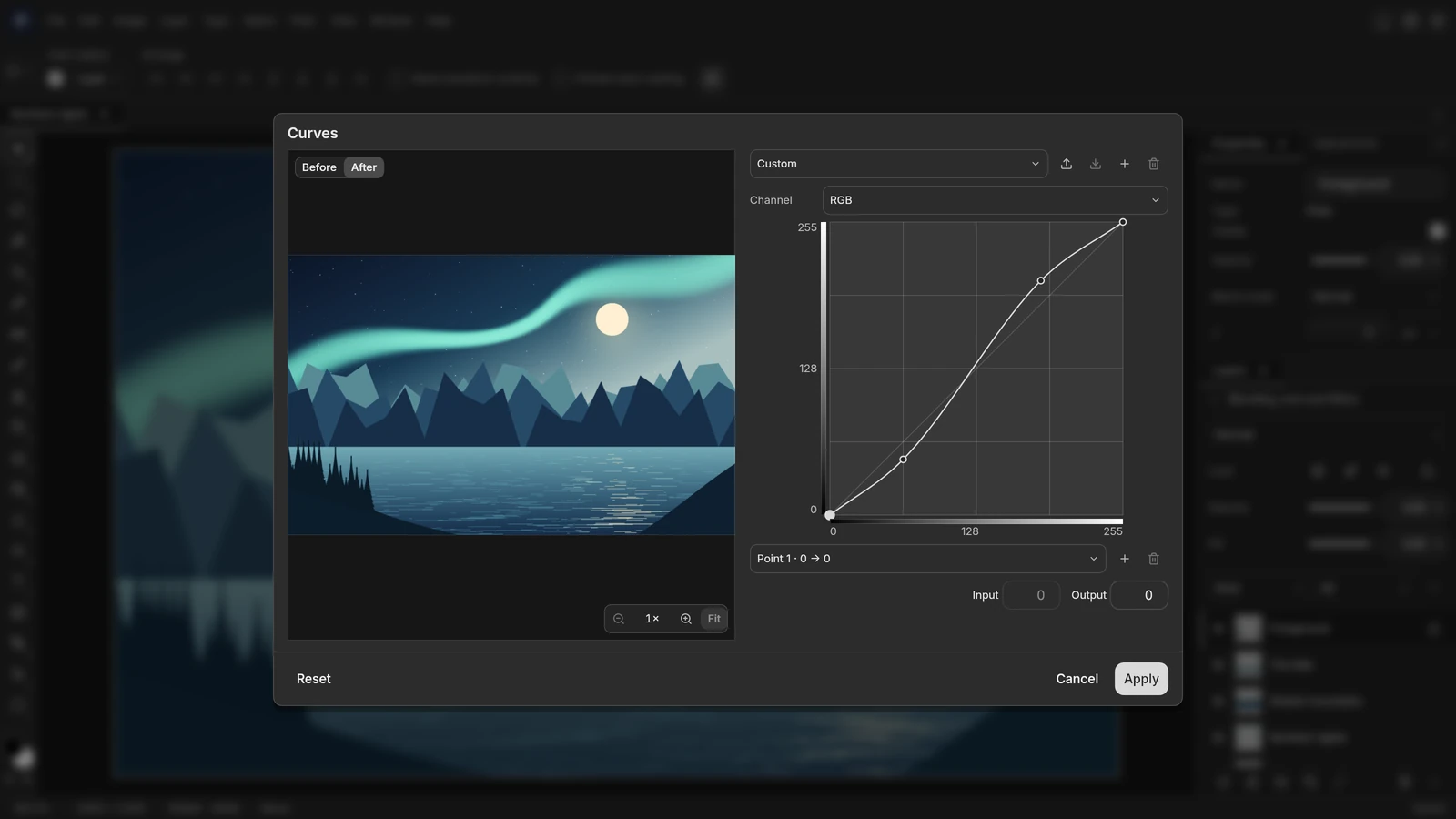
Use an adjustment layer when you want to keep the correction editable. Curves, Levels and other adjustments can be revisited independently of the source pixels.
Destructive adjustments and filters change raster pixels and are recorded in history. Smart objects can retain editable smart-filter stacks for supported operations. Check the active layer and selection before applying a correction.
Retouch a photograph
Brush and eraser edit pixels or the selected mask. Healing and clone tools repair small regions; sampled tools require the source requested by their options.
Start with a moderate brush size and inspect at 100%. Brush size, hardness, opacity and dynamics control different aspects of the stroke; pressure controls depend on the tablet and platform input.
Add text and shapes
Text layers retain editable typography. Shape layers retain vector geometry; shape tools can also create paths or pixels, so choose the output mode before drawing.
Fonts are resolved on the machine. Missing fonts may be substituted for display while the requested family stays in the document. Install the original font to reproduce the intended layout.
Arrange panels and repeat work
Window → Workspace offers Essentials, Photography, Painting and Prepress. Move panel tabs between docks, detach them inside the editor and save a custom workspace.
The Actions panel records supported operations and replays them. Batch processing applies an action to a series of files. Review unsupported action steps and use copies of source files for a new workflow.
Export a document or selection of layers
File → Export controls format, dimensions and the options supported by that codec. Quick Export reuses the last raster preset, including output scales and suffixes.
The Layers context menu also exports selected layers, groups and artboards. Regular layers use their visible bounds; artboards retain their own canvas rectangle.